Connecting your laptop to a monitor allows you to extend your laptop’s screen, improve your workspace, and enhance your productivity. To connect a laptop to a monitor, you’ll need to follow several essential steps. The first step to start with is identifying the right port on your laptop and monitor, and having the appropriate connecting cable.
Identifying the Right Port and Cable
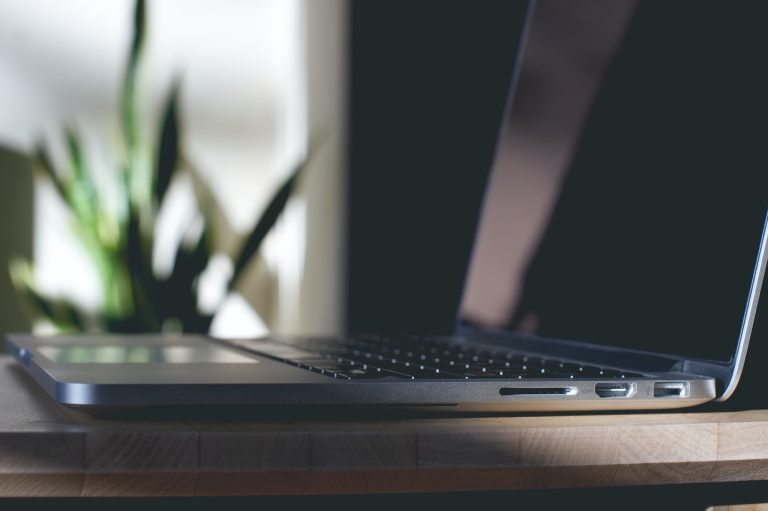
Before connecting the laptop to the monitor, it’s crucial to identify the available port on both devices. The type of port will determine the cable you need for a successful connection. The most common types of ports found on laptops and monitors are HDMI, DisplayPort, VGA, DVI, and USB Type-C.
- HDMI (High-Definition Multimedia Interface): This is the most common port type found on modern laptops and monitors. HDMI supports both audio and video transmission, allowing a high-quality connection between devices. HDMI cables are widely available and affordable.
- DisplayPort: DisplayPort offers similar capabilities as HDMI, providing high-resolution video and audio connections between devices. Though not as common as HDMI, some newer laptops and monitors will include a DisplayPort connection.
- VGA (Video Graphics Array): Older laptops and monitors often use VGA connections. VGA is an analog video-only connection, meaning that no audio is transmitted. This type of connection provides lower resolutions compared to HDMI or DisplayPort and may not be preferable for working with high-resolution content.
- DVI (Digital Visual Interface): DVI is another video-only connection type, found mainly on older monitors. DVI offers higher resolutions compared to VGA, but it does not support audio transmission.
- USB Type-C (USB-C): USB Type-C is a versatile port found on many modern laptops. USB-C can transmit video, audio, and data, and can even be used to charge devices. Many laptops, such as the MacBook Pro, have replaced traditional ports with USB-C connections. To use a USB-C connection, the monitor must also support USB-C, or you may need to use an adapter to connect to HDMI or DisplayPort.
Once you have identified the matching port on both your laptop and monitor, you will need to purchase the appropriate cable, if you do not already have one, to connect the devices.
In summary, the first step of connecting a laptop to a monitor is identifying the appropriate port and cable type for your specific devices. Once you have the correct cable, you can proceed with connecting the devices, adjusting settings, and customizing your display preferences.